
This article explains how to watch a video and complete a module for the first time.
Step 1: Cyber Eclipse email received
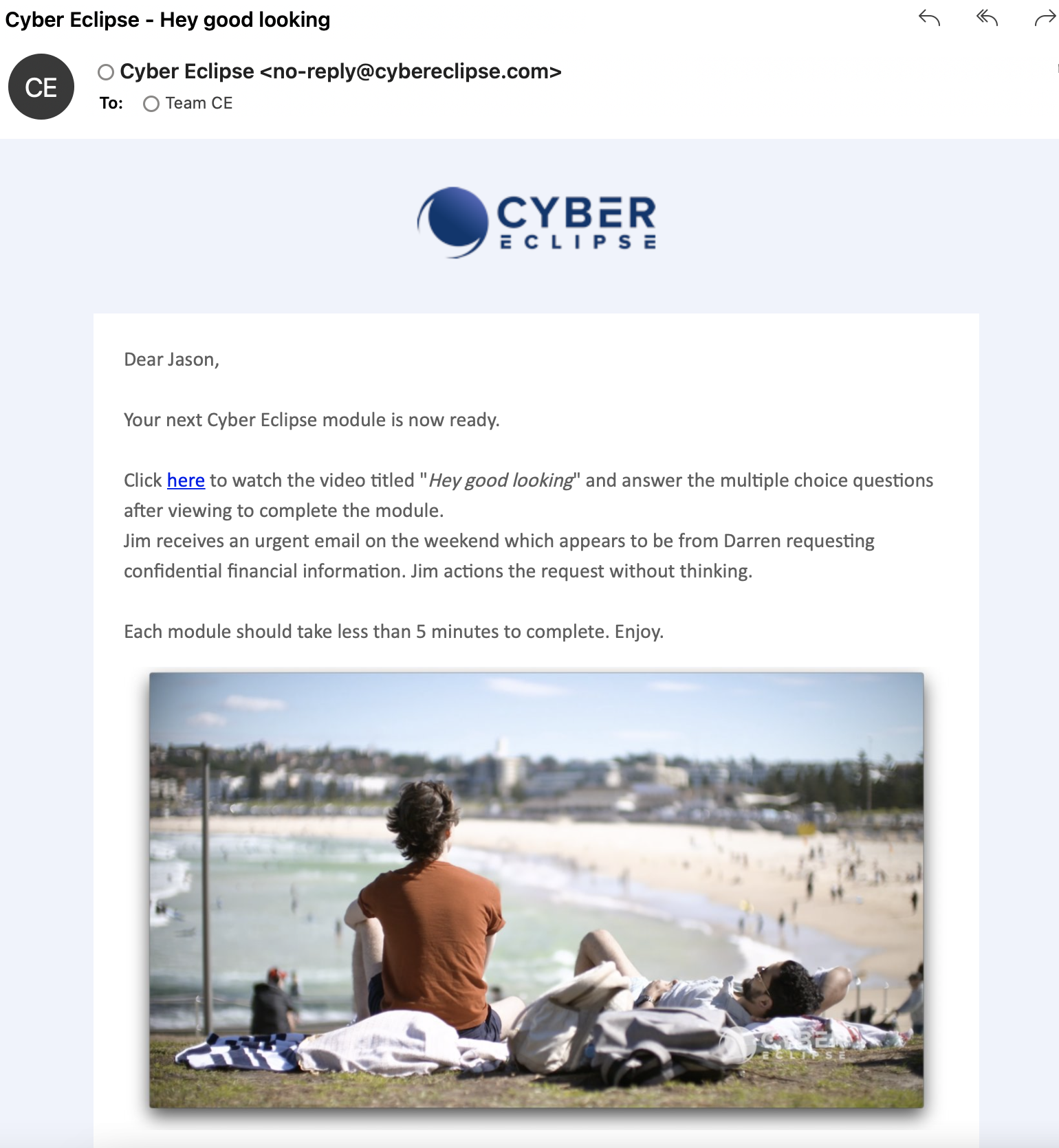
Your administrator will schedule training modules for you to view and complete. Each module should take less than 5 minutes. You will be notified by email when this training needs to be completed. When you are ready to view the module, click the "here" link (shown below) or click the thumbnail video image, both of which will take you to the training module.
Step 2: Create password (first time users only)
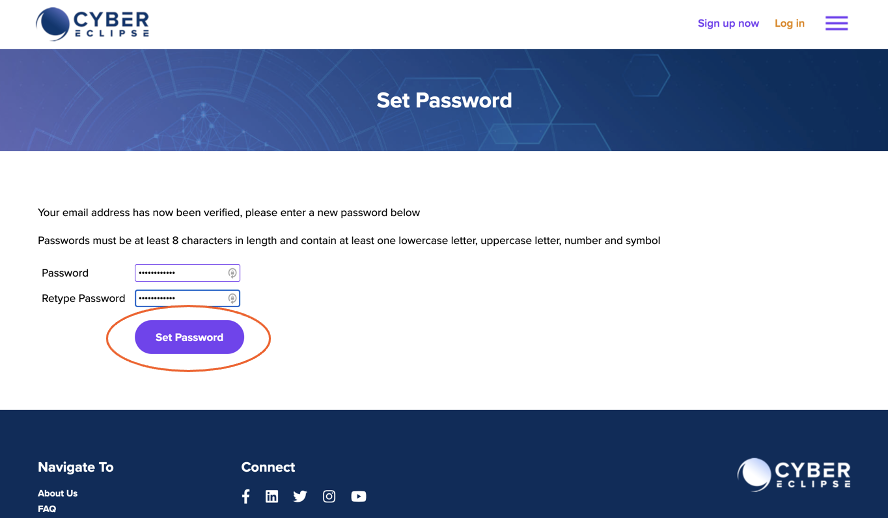
If this is your first time logging in, you will be directed to the activation page and you will be asked to Set a Password. Passwords must be at least 8 characters in length and contain at least one lowercase letter, uppercase letter, number and symbol
Once you have created a password, click on “Set Password”.
Step 3: Login
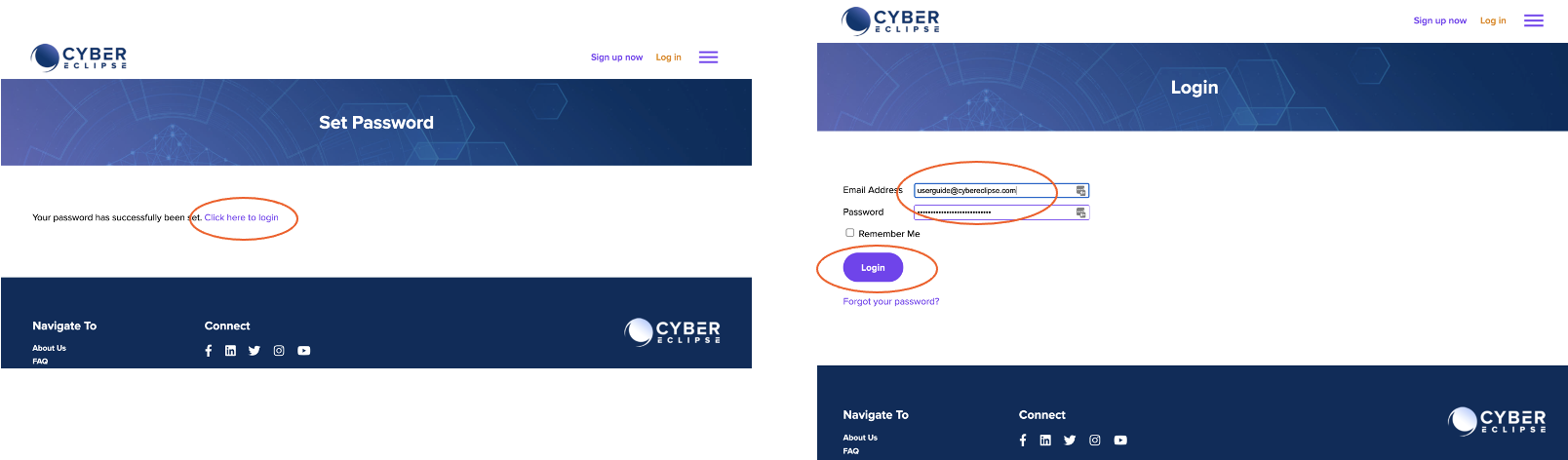
Once your password has been set, you will be asked to login. Click on the link which is circled below (“Click here to login”) and enter your username and password when requested.
Step 3a: Setup 2FA (only if required)
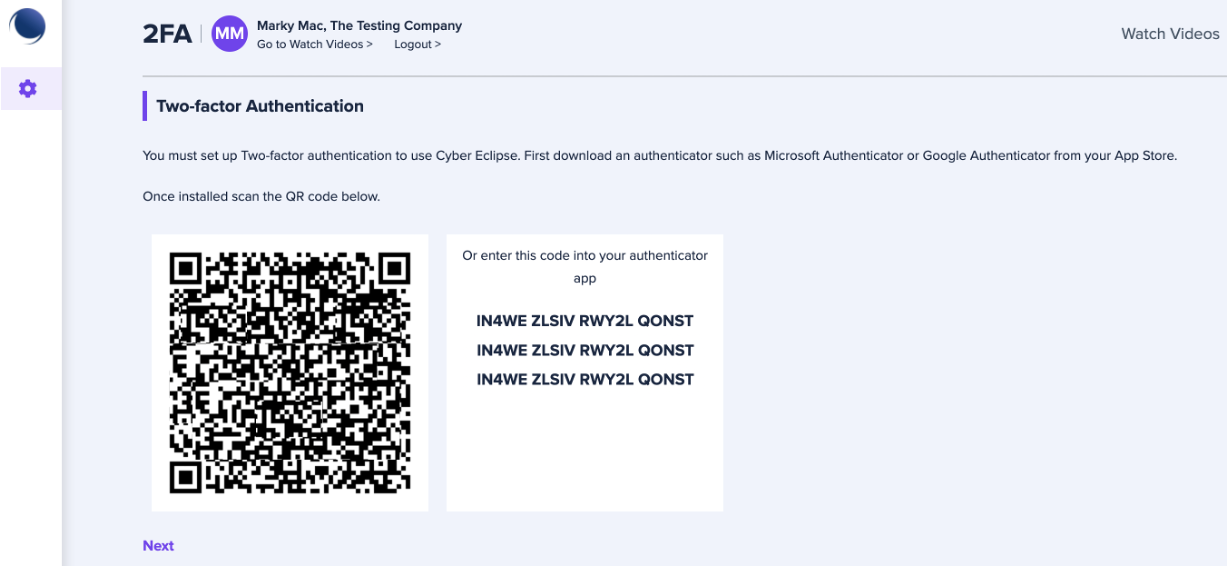
If your administrator requires Two Factor Authentication, follow the prompts to set this up. Then click “Watch Videos”.
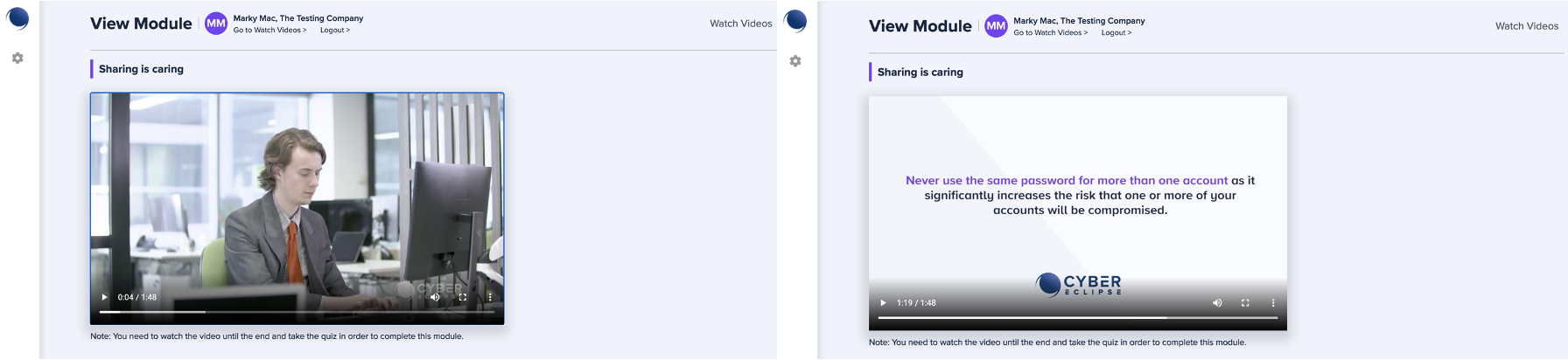
Step 4: Watch module until the end
Your training module will appear. Click on the play button to view the module. Take note of the final message.
Step 5: Take the quiz
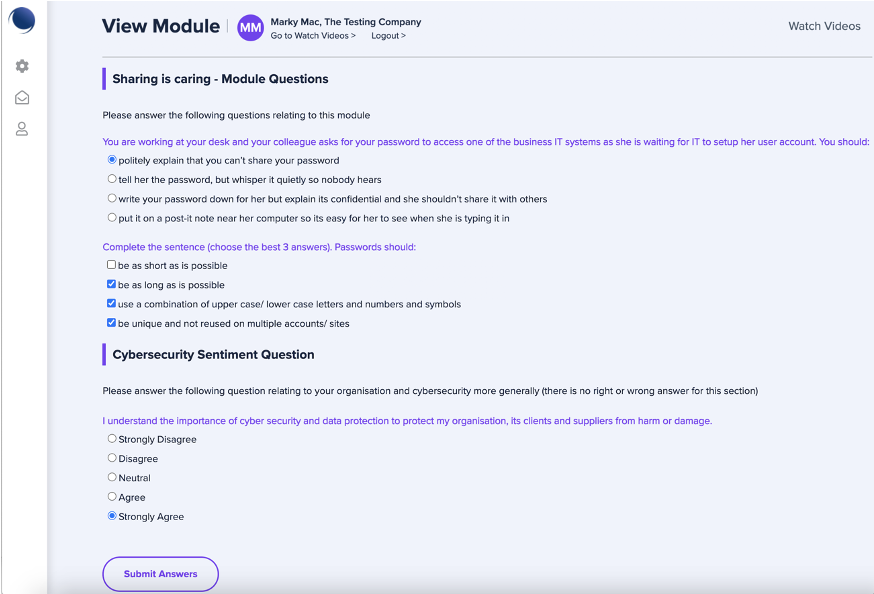
At the end of the module you will be asked some questions. You must attempt all questions – your module will not be complete unless you have answered all questions. Once you are satisfied with your answers submit them by clicking on the “Submit Answers” button.
Step 6: Results and you are done!
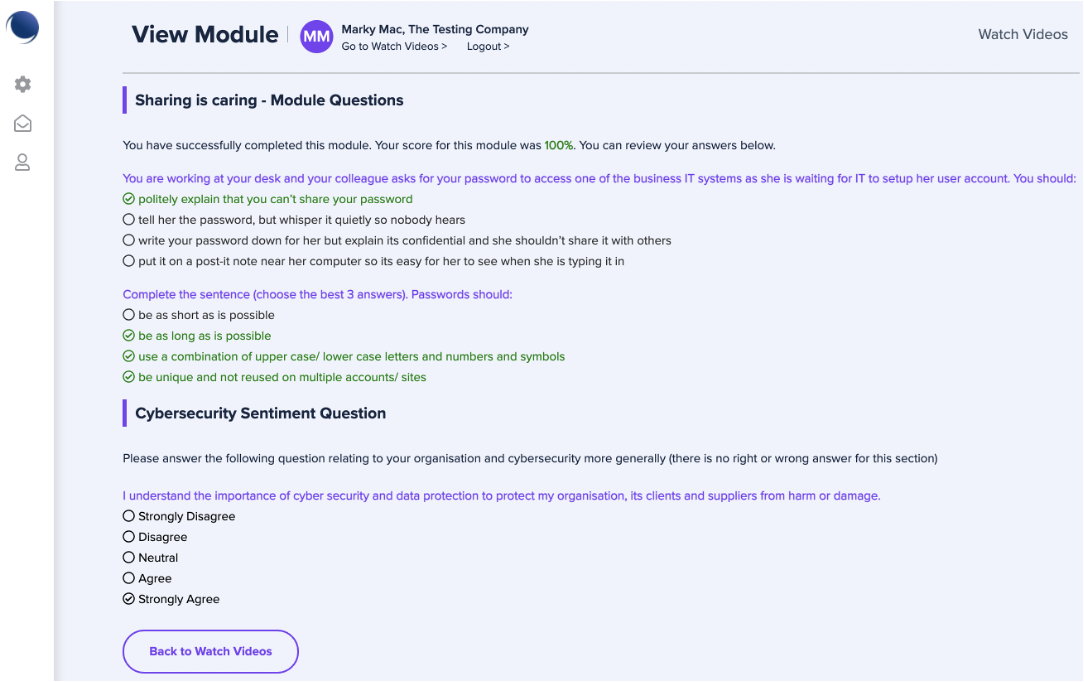
Once you have submitted your response you will receive your results. Well done, your module is complete.
Comments
0 comments
Article is closed for comments.