
CE Defender is a Dark Web Monitoring service included in your subscription which proactively and continuously monitors emails within your CE organisation to test whether those emails have been involved in any credential breach and can immediately alert users and administrators via email if any emails have been compromised.
- Click Settings (
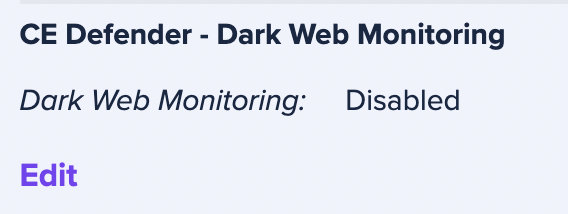
 ) in the left navigation bar. Look for the CE Defender - Dark Web Monitoring section below on the Settings page and click Edit (
 ).
).
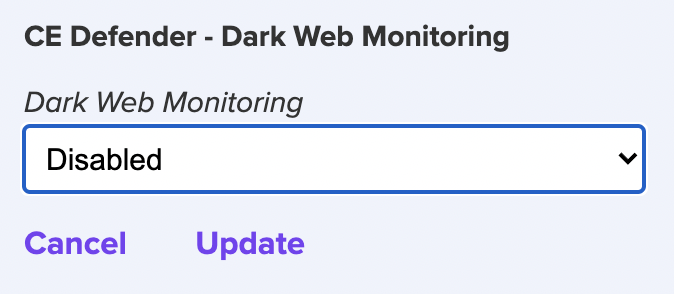
- Select Enabled from the drop down menu which will show the options below
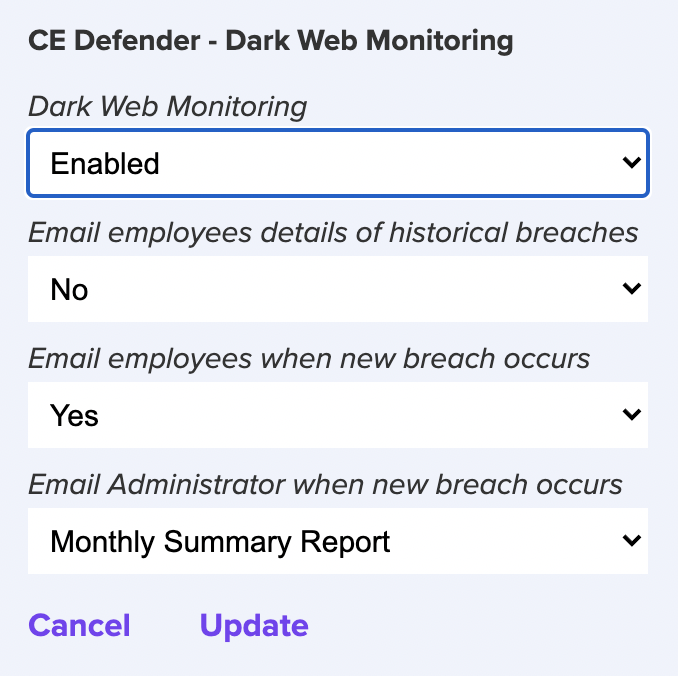
IMPORTANT: Cyber Eclipse recommends that you leave the option "Email employees details of historical breaches" as “No” (Default setting) unless you have given prior notification to your employees to expect emails from CE Defender for prior breaches. If you select "Yes" for this option, your employees will immediately receive an email with all historical breaches identified against their email registered with Cyber Eclipse. - Select your preferred options for “Email employees when new breach occurs” and “Email Administrator when new breach occurs” and click Update (
 ).
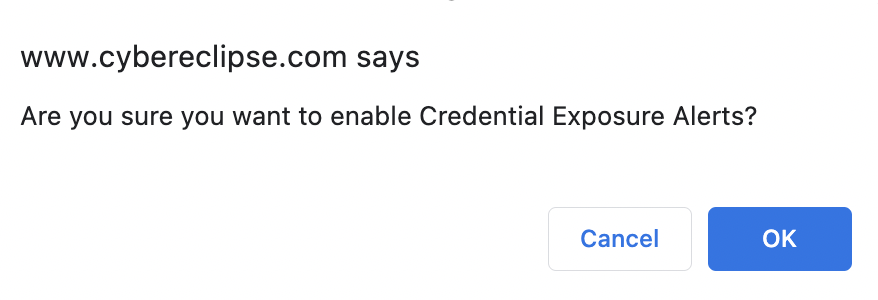
). - You will then see a confirmation dialogue box similar to the below – click Ok if you are happy to proceed
- A new icon for CE Defender (
 ) will show in the left navigation bar. Click the CE Defender () icon and you will see if any emails in your organisation (which are registered with Cyber Eclipse), have been compromised (which is common – so don’t be surprised if you see compromised emails!). Once you have Enabled CE Defender, emails in your organisation (which are registered with Cyber Eclipse) will continue to be monitored for credential compromise whilst your Cyber Eclipse subscription is current.
Want to see these instructions in a video - watch here!
Comments
0 comments
Article is closed for comments.