
- Click Scheduler (
 ) in the top right navigation bar. You will be taken to a screen similar to the below.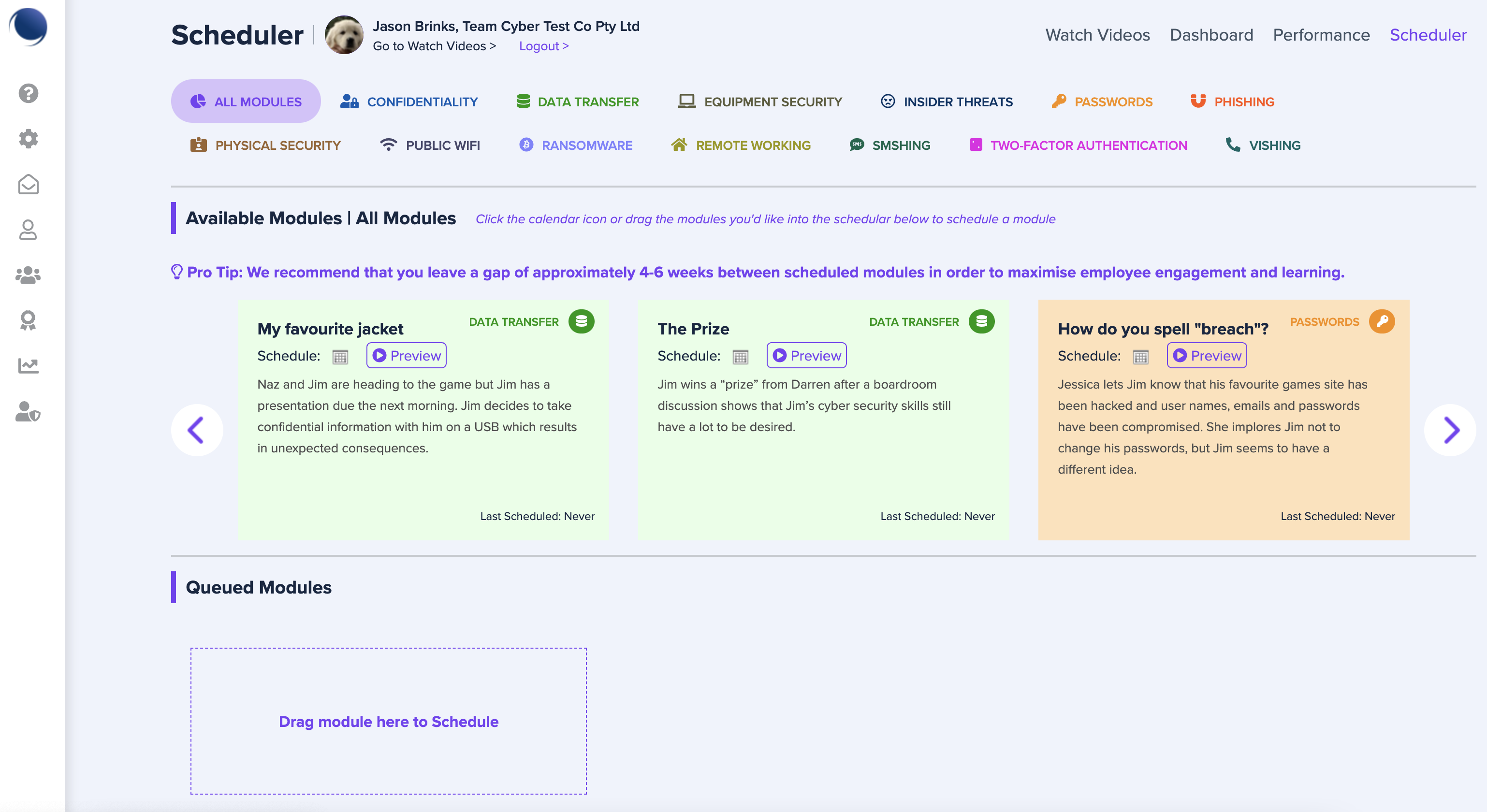
- Choose the video module you wish to schedule. You can scroll through the video modules by using the arrow icons (

 ) on the left and right of screen. You can "filter" videos by a single category by selecting the category at the top of screen (eg. Ransomware, SMShing, Phishing etc).
 Pro Tip: We recommend that you leave a gap of approximately 4-6 weeks between scheduled modules in order to maximise employee engagement and learning.
 - Click the Preview (
 ) button if you wish to preview a video before it is scheduled.
 - You can schedule your video in one of two ways - either:
-
- click the calendar icon (
 ) on the video you wish to schedule and select the date for when you want the video to be delivered to your users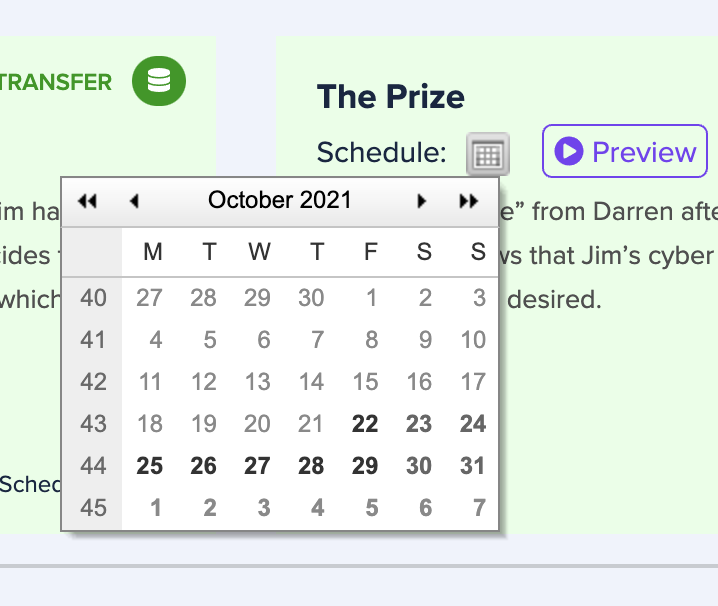
- click the calendar icon (
-
-
-
- drag the video you wish to schedule to the Queued Modules section (
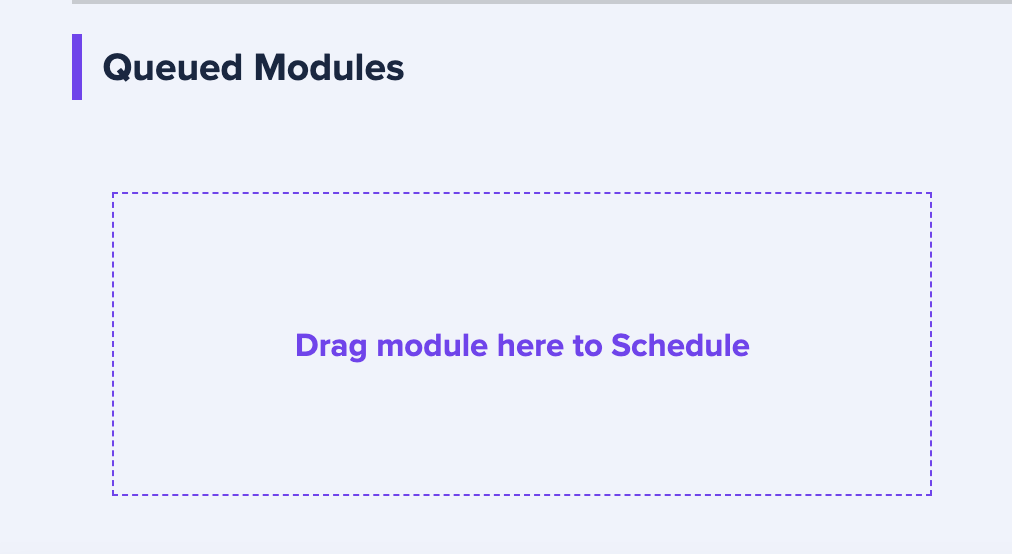 ) over the words "Drag module here to Schedule" and select the date for when you want the video to be delivered to your users
- drag the video you wish to schedule to the Queued Modules section (
-
Please note, each video scheduled will be sent to ALL users unless you have created a Group and scheduled only to that Group.
-
-
- You will receive a confirmation message similar to the below, re-confirming that you want the video to be scheduled on the selected date. Click OK when ready.
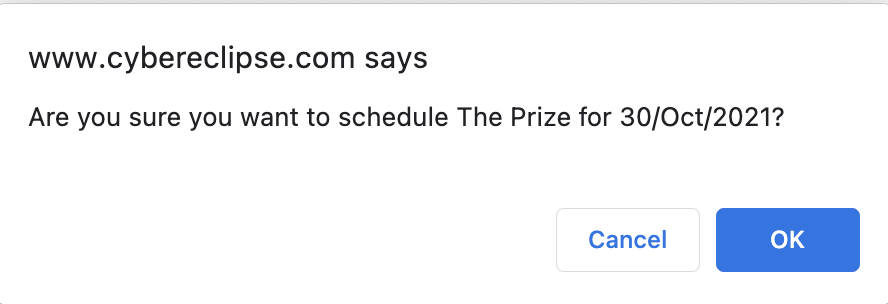
If you select the current date, your video will be scheduled almost immediately (5 minutes after it has been loaded into the queue, to give you a few minutes to cancel in case this was accidental) and your confirmation message will look similar to the below. Click OK when ready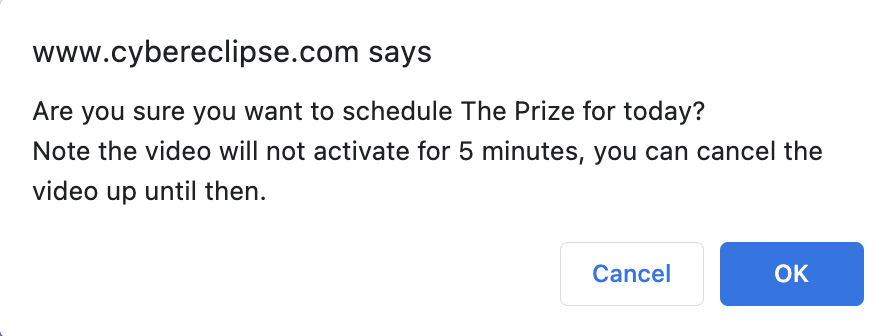
- Once your video has been correctly scheduled, you will see it appear in the Queued Modules section similar to the below.
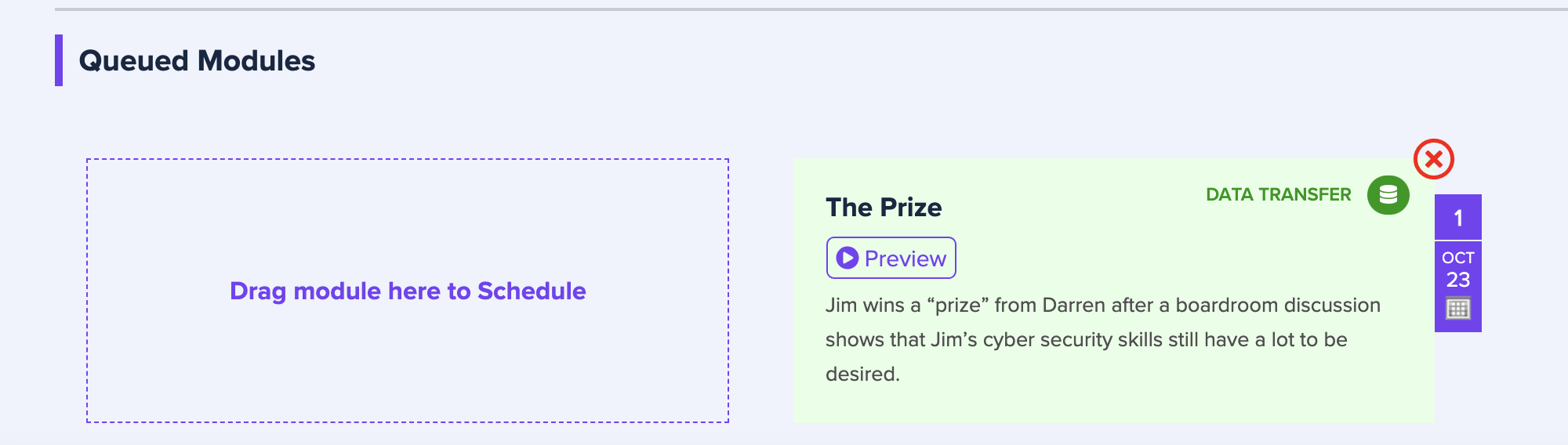
- You will receive a confirmation message similar to the below, re-confirming that you want the video to be scheduled on the selected date. Click OK when ready.
- Click the red cross (
 ) in the top right corner of a scheduled video to cancel at any time before the scheduled date for that video.
-
Want to see these instructions in a video - watch here!
Comments
0 comments
Article is closed for comments.